Listfolk

Shopping together, made simple.
One shared list for your household, synced through your iCloud. No account needed.

-
Shared with your household Everyone on the same list.
-
Recipes from the Assistant Turn meal ideas into a list.
-
No account Your lists stay in your iCloud.

Shared lists
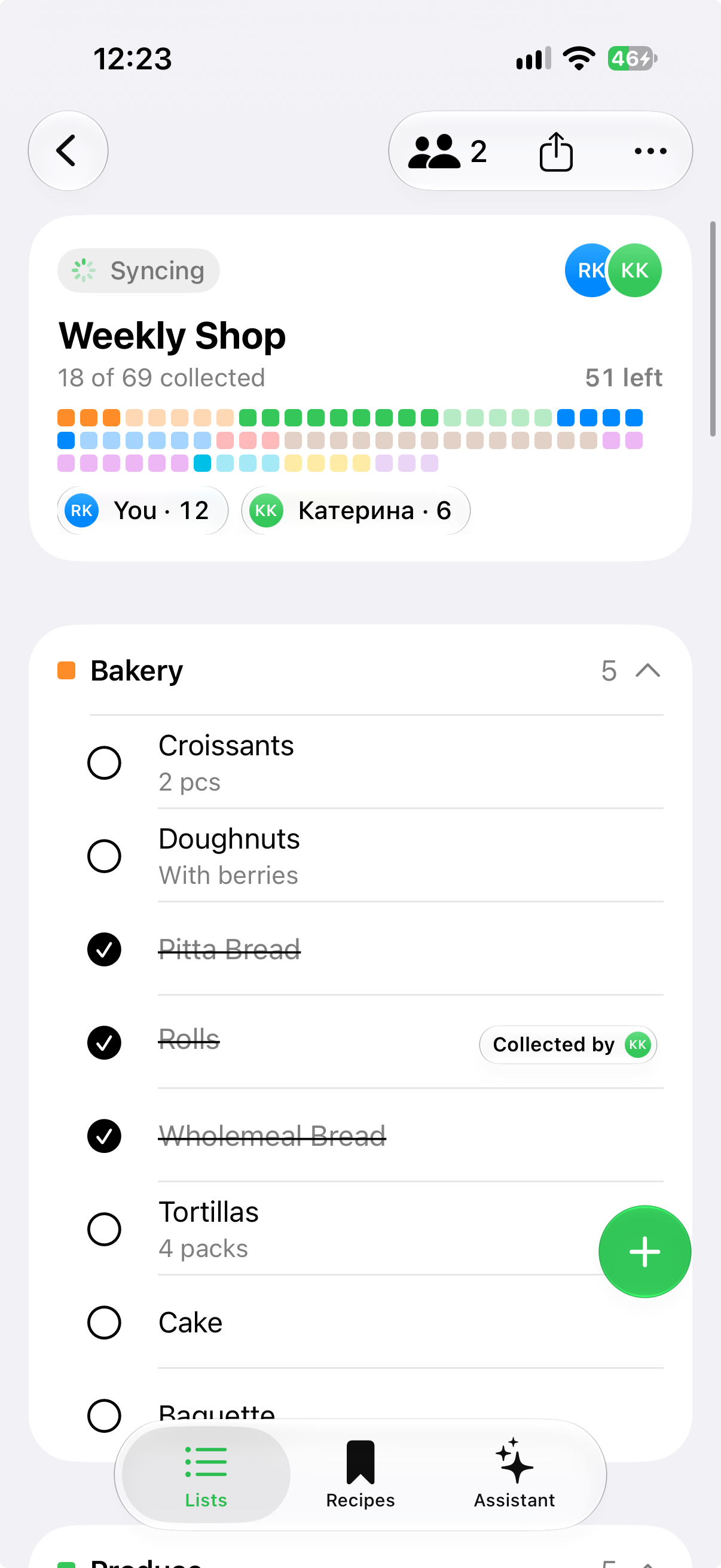
One list. Everyone in sync.
Share a list with your household and shop together. Changes show up on every iPhone as they happen.
-
Share through iCloud Invite people through Messages, or share a link.
-
See changes live And who added what.
-
Get notified When someone changes a shared list.
The Assistant
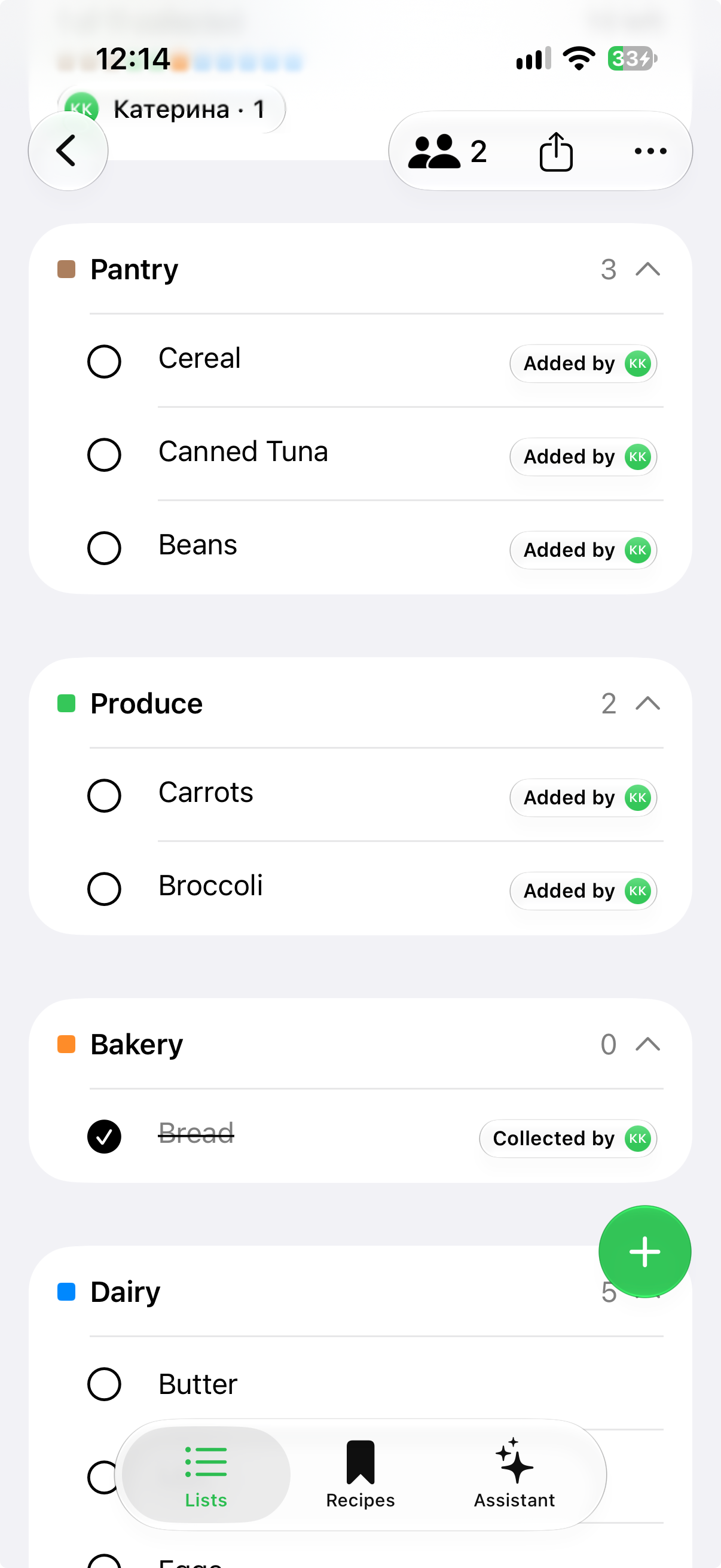
From a recipe to a ready-to-shop list.
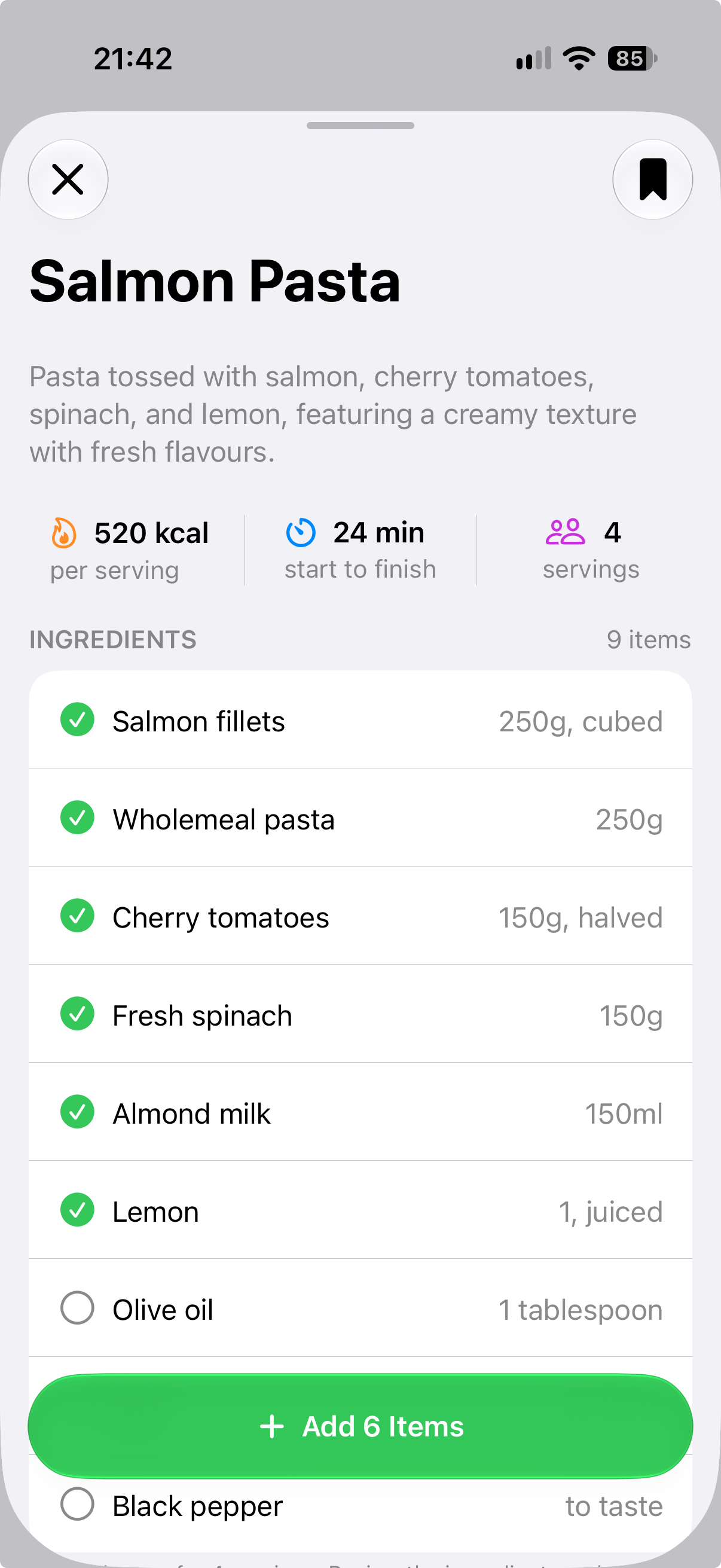
Not sure what to cook? Ask for meal ideas, then add the ingredients you need to a list.
- Ask for meal ideas or a recipe
- Pick the ingredients you need
- Add them to your list
Uses Apple Intelligence on supported iPhones.
Store order
Walk the aisles once.
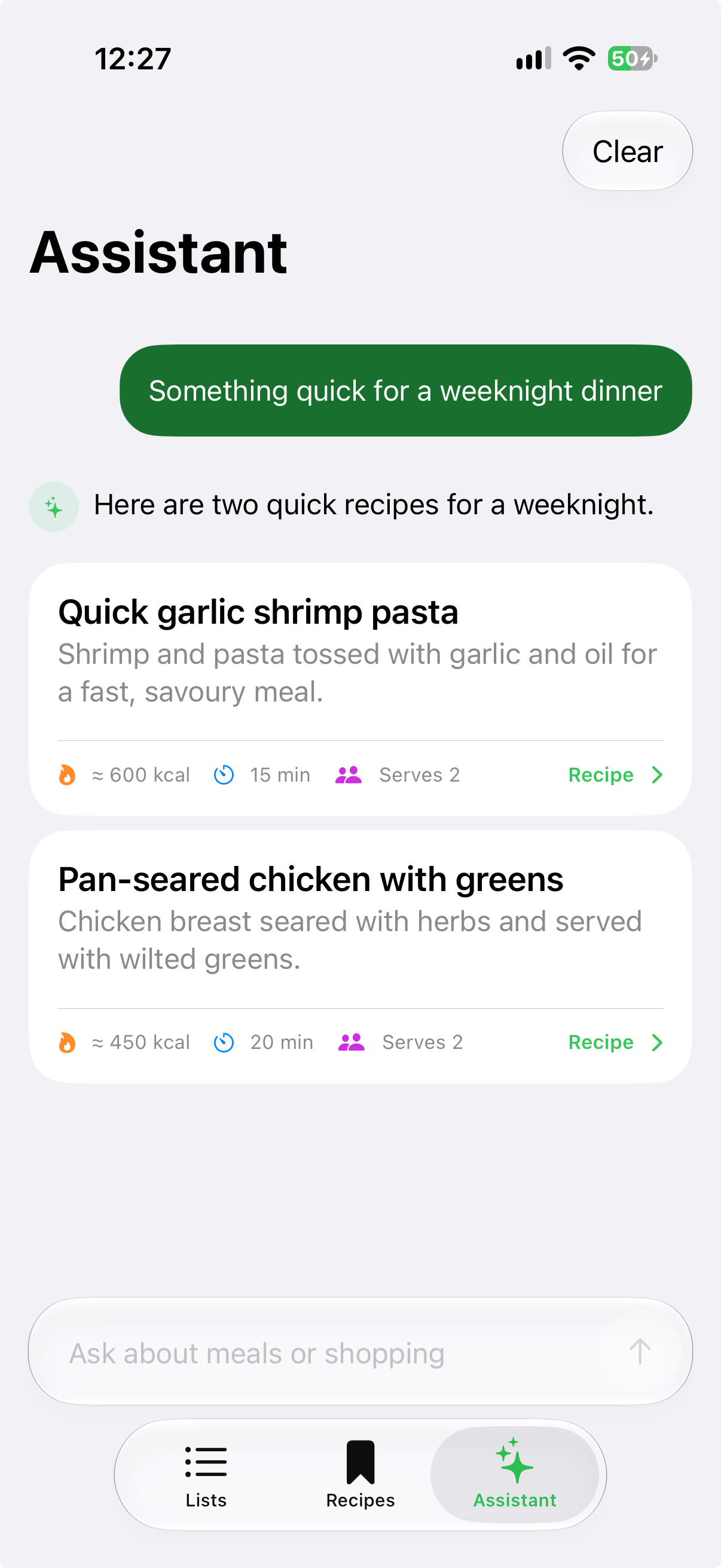
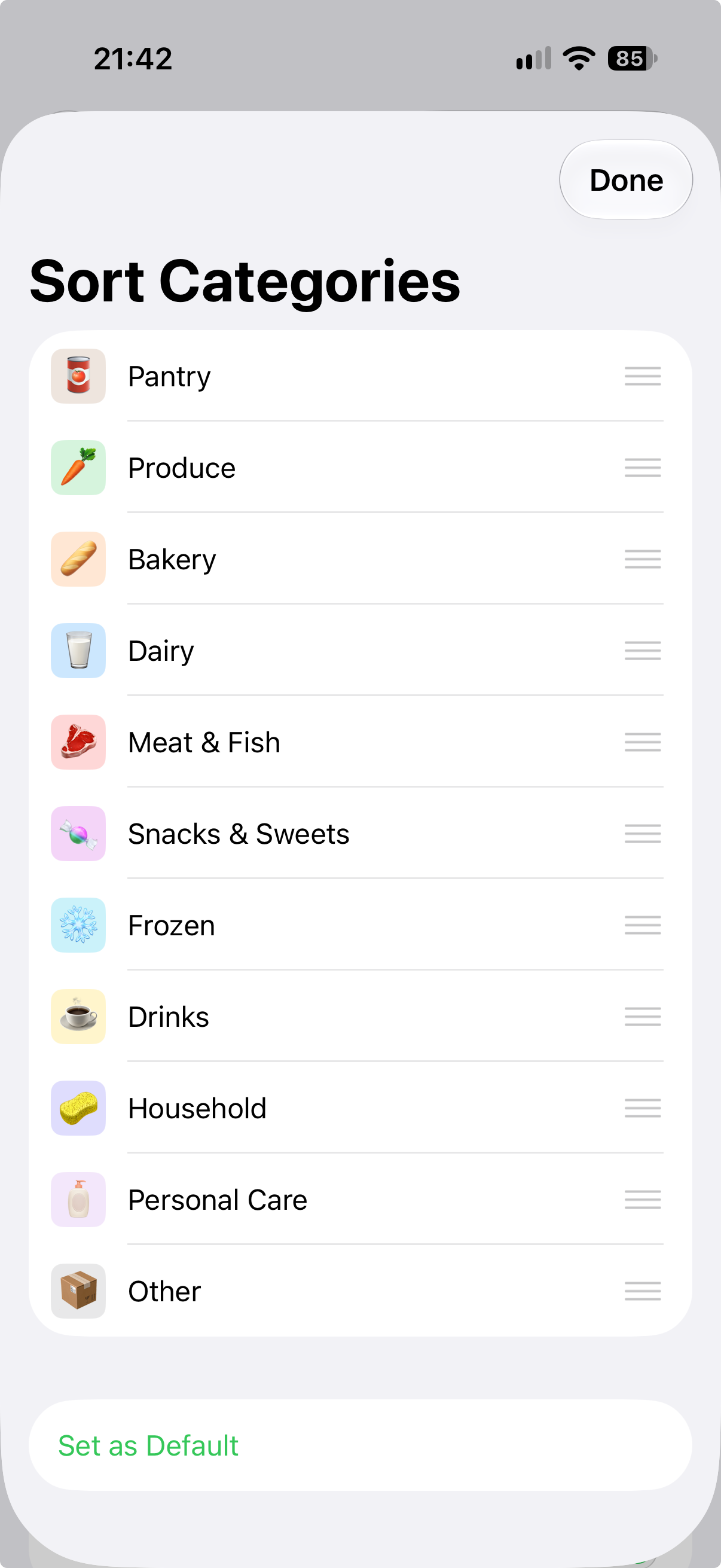
Put categories in the order of your store, and collected items move out of the way.
-
Sort categories your way Match the order of the aisles in your store.
-
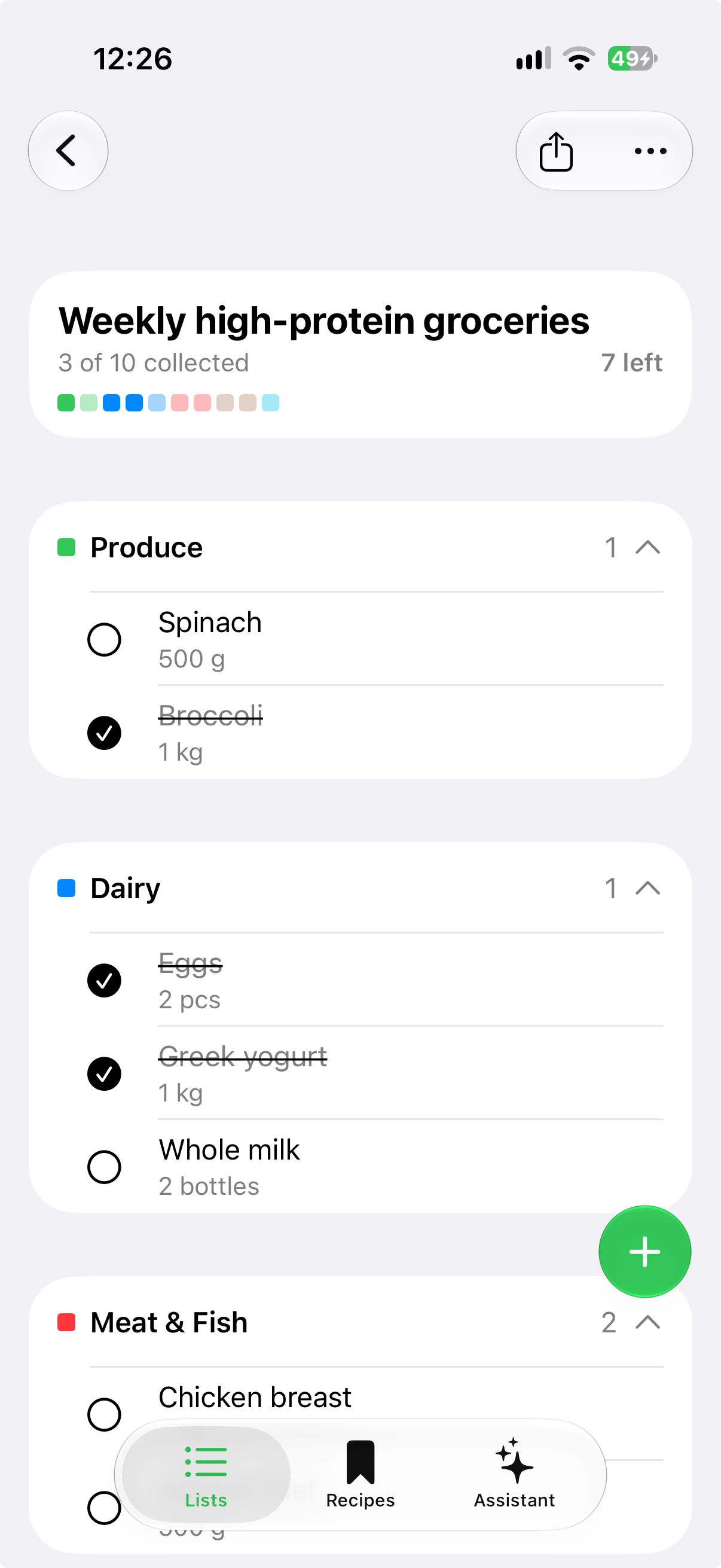
Collected items move aside What’s left stays on top, or keep everything in place.
-
Need it again? Restore a collected item with a tap.
Everything you need, nothing you don’t.
-
Quick add Suggestions from what you add, a built-in catalog, or Siri.
-
No duplicates Already on the list? Listfolk tells you.
-
Works offline Lists open and update with no signal.
-
In 15 languages Listfolk follows your iPhone’s language.
Frequently asked questions
View allDo I need an account?
No. Open Listfolk and start a list. Sharing a list uses your Apple Account through iCloud.
Can my family edit the same list?
Yes. Share it through iCloud, by invitation or with a link. Everyone on the list can add, edit and collect items.
Where are my lists stored?
On your iPhone and in your iCloud. Listfolk has no server and keeps no copy of your lists.
Which iPhones can use the Assistant?
iPhones that support Apple Intelligence, with Apple Intelligence turned on in Settings.

Ready for an easier shop?
Start your first list in seconds. No account needed.